
There is nothing more frustrating than sitting down to watch a long-awaited live match or your favorite series, only to be met with an "IPTV not working" error, a black screen, or that dreaded endless buffering wheel. You have high-speed internet, you upgraded your television, and yet, the stream refuses to load. When your entertainment system breaks down at the exact moment you need it, the stress levels skyrocket.
But before you throw out your Firestick or start sending angry emails to your provider, understand this: the vast majority of IPTV playback problems are completely solvable at home within a few minutes. This complete 2026 fix guide walks you through exactly why your IPTV stops working and provides the immediate, real-world solutions you need to get your streams running flawlessly again.
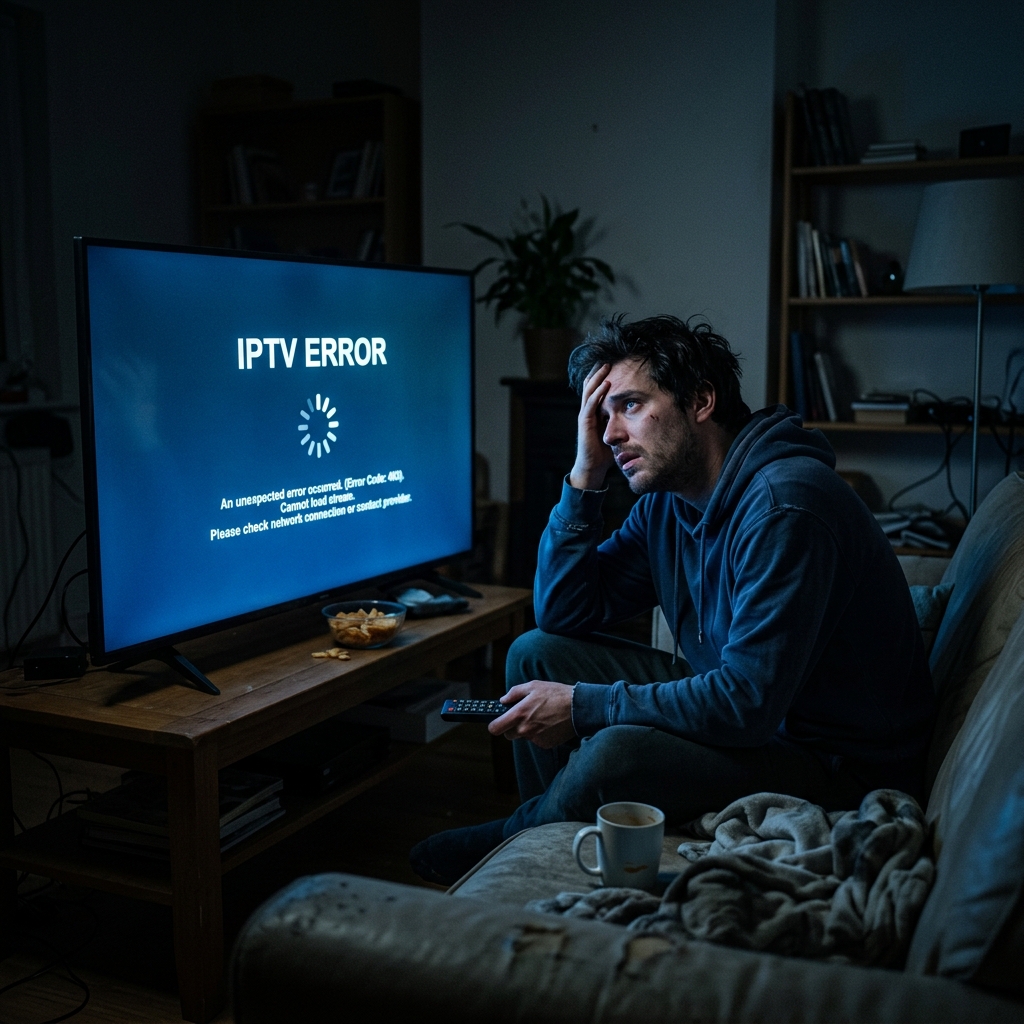
Why IPTV Stops Working (Real Reasons)
To effectively fix the problem, you must first understand where the breakdown is occurring. A modern streaming setup is a chain relying on four distinct links, and if any single one fails, the entire broadcast stops.
The most common reasons include:
Quick Fixes (Try This First)
Before diving into complex network diagnostics, perform this rapid troubleshooting checklist. Nine times out of ten, these simple actions will clear the blockage and restore your channel immediately.
Fix IPTV Buffering Issues
Buffering is the enemy of live sports and cinematic immersion. It happens because your player consumes the video data much faster than your internet or the server can supply it, causing the app to pause and wait for the next packet.
If your internet speed is robust but checking channels constantly reveals stuttering, you are likely dealing with either a chronically overloaded budget server or your ISP actively throttling your video packets. ISPs notoriously monitor high-bandwidth usage and artificially slow down unverified streaming traffic during peak hours.
| Problem | Cause | Fix |
|---|---|---|
| Micro-Stutters | Weak WiFi / Latency | Connect via an Ethernet cable directly to the router. |
| Evening Buffering | ISP Throttling Traffic | Use a premium VPN to encrypt your IPTV data. |
| Audio Desync | Bad Player Decoder | Switch from Hardware (HW) to Software (SW) decoding in app settings. |
| Constant Pausing | Device Out of RAM | Clear application cache and delete unused background apps. |
Sometimes the app opens perfectly, but the playlist entirely fails to populate, or every channel returns a "Playback Failed" error.
If the channels simply refuse to load, you might be facing a severe DNS blockade. Many local internet providers employ aggressive firewalls that automatically block known media server URLs. A simple fix is to manually change your device's DNS settings to Cloudflare (1.1.1.1) or Google (8.8.8.8) to bypass the localized block.
Additionally, check your subscription status. It sounds obvious, but many users simply forget their annual renewal date. If your credentials have expired, the server will permanently reject your connection until the invoice is settled.
Fix IPTV on Firestick & Android

The Amazon Firestick and various Android TV boxes are incredibly capable engines, but they are prone to digital clutter. If IPTV keeps freezing specifically on your streaming stick, you need to perform device-level maintenance.
For more detailed, step-by-step device tutorials demonstrating proper optimization, browse the extensive IPTV setup guides that walk you through maximizing hardware efficiency.
Internet & Network Fixes
The foundational requirement for any premium 4K television experience is an uncompromising, rock-solid network pipeline.
When the Problem Is Your IPTV Provider
You can hardwire your Firestick, configure a brilliant VPN, and boost your internet to gigabit speeds, but if you are connected to a terrible provider, your screen will inevitably stay dark.
Many unverified budget providers lure customers in with impossibly low yearly prices, only to disappear completely or jam fifty thousand users onto servers built for five thousand. If your streams only buffer during major football matches, if customer support is non-existent, and if channel outages drag on for days at a time, the problem is not your living room—it is their infrastructure.
Stop wrestling with broken streams from anonymous resellers. Upgrading to a highly optimized, structured reliable IPTV provider ensures that the heavy server-side investments have already been handled for you.
Best IPTV That Actually Works (2026)
Finding a platform that simply turns on and plays flawlessly every time you grab the remote is the ultimate goal for cord cutters. You need a system backed by robust anti-freeze server technology, a deep library of multi-national content, and transparent support that actually responds. By testing the advanced architecture directly on the Varodatic IPTV homepage, you bypass the endless troubleshooting loop and secure an entertainment hub capable of reliably handling massive 4K weekend traffic without cracking under the pressure.
How to Prevent IPTV Problems
The best way to fix a broken stream is to engineer your setup incredibly well from the very beginning. Follow this mandatory checklist to heavily future-proof your living room viewing.
Final Fix & Recommendation
Troubleshooting an application failing to load ultimately comes down to isolating the source. If you methodically verify that your device is freshly rebooted, your cache is cleared, and your direct Ethernet connection is pulling massive speed, the fault ultimately lies entirely on the server end.
Do not waste hours of your valuable free time desperately restarting your router to fix a broken provider. The modern streaming landscape in 2026 demands flawless, cinema-grade performance, and there is no reason to accept constant buffering screens. Guide yourself toward a vastly superior viewing experience and leave the frozen pixels behind.
FAQ
Why is my IPTV suddenly not working today?
It could be a massive server outage due to a high-profile sports event, or an expired subscription. Before diagnosing deeply, always reboot your streaming device and verify your internet speed.
How do I completely fix continuous buffering?
If the buffering only occurs during the evening peak hours, your ISP is likely throttling you. Using a VPN encrypts your connection. Additionally, hardwiring your device with an Ethernet cable provides instant stability.
Why are my channels not loading or showing "Playback Failed"?
This frequently indicates an aggressive ISP firewall or missing DNS resolution. Switching your device's DNS to Google (8.8.8.8) or Cloudflare (1.1.1.1) usually bypasses this restrictive block.
Does clearing the app cache actually help?
Yes. Low-storage devices like older Firesticks rapidly fill up with background data. Clearing the application's cache physically frees up necessary memory, allowing the video decoder to function fully again without crashing.
Why do VOD movies play fine, but live channels freeze?
On-demand movies pre-buffer data before you watch them, acting as a security net against slow connections. Live sports cannot realistically pre-load, meaning any micro-fluctuation in your internet completely pauses the stream.
Should I use WiFi or Ethernet for 4K streaming?
Always select Ethernet. WiFi is highly susceptible to latency spikes caused by walls, appliances, and neighbor interference, which immediately destabilizes the smooth flow of 4K live streams.
Related Articles

Best IPTV Players for 4K Streaming in 2026
Discover the most reliable and feature-rich IPTV players optimized for seamless 4K streaming and zero buffering this year.
Read Article
How to Setup IPTV on Firestick: Complete Guide 2026
A complete step-by-step guide to setting up IPTV on any Firestick model — from enabling developer options to optimizing for 4K playback.
Read Article