
It is ninety seconds until the second half kicks off, the score is tied, and your screen suddenly freezes on a spinning circle. A few moments later, the feed resumes, only to pause again just as the striker takes a shot. You have a fast internet connection, you paid for the subscription, and you set up your device perfectly—yet you are still staring at TiviMate buffering on your Firestick.
When live television breaks down at the exact moment you want to watch it, frustration is inevitable. However, blindly rushing to change your router settings or aggressively clicking through the Firestick menu usually causes more harm than good. Not all streaming interruptions are created equal. Some hit exclusively during high-profile weekend matches, while others are persistent stutters caused by internal hardware bottlenecks or incorrect video decoder limits.
This guide bypasses generic advice to offer a calculated, diagnostic approach. By methodically identifying the breaking point in your digital chain, you can apply the exact technical fix needed to restore a cinema-grade viewing experience.
Before we tear apart your device configurations, run through this immediate diagnostic checklist to clear straightforward connection blocks.
Quick Answer — 7 Things to Try First
| Symptom | Most Likely Cause | First Fix to Try |
|---|---|---|
| Micro-stutters every 30 seconds | Weak or crowded Wi-Fi signal | Connect to 5GHz or use an Ethernet adapter. |
| Total freeze during big matches | Provider-side server overload | Cross-test an alternative channel group. |
| Audio plays but video lags | Incorrect decoder settings | Switch TiviMate to Software (SW) decoding. |
Understanding exactly where the failure is occurring prevents you from endlessly tweaking settings that were never broken to begin with.
Firestick hardware limits
The Amazon Firestick is a brilliant, highly portable engineering marvel, but it possesses significant computational limits, particularly on older generations. If you are attempting to force a massive 40,000-channel list alongside a heavy XMLTV program guide through a standard Firestick Lite, you will run out of system RAM. When RAM maxes out, the internal environment is forced to aggressively dump data it needs, resulting in immediate playback stuttering, particularly on heavy H.265 broadcasts.
Weak Wi-Fi, crowded routers, and unstable latency
Streaming raw video packets in real-time requires incredibly stable latency. You might pull excellent speeds on a web browser, but if your 2.4GHz Wi-Fi band is constantly interrupted by your neighbors' routers, your microwave, or thick walls, those packet drops will break a live stream. Speed tests measure maximum capacity; they rarely illustrate the micro-fluctuations in route stability that crush your digital television feeds.
Provider-side congestion and peak-hour overload
The harsh reality of digital broadcasting is that incredibly cheap reliable IPTV subscription options are not built the same. If your feed is entirely flawless on a quiet Tuesday morning but consistently cracks into pixelated buffering on a Saturday afternoon during a massive derby, your home equipment is not at fault. This is classic server congestion. The provider's architecture simply lacks the bandwidth capacity required to push high-definition video to tens of thousands of simultaneous users.
Player settings that are too aggressive or not optimized
TiviMate gives you immense administrative control over your stream processing, but pushing those parameters out of bounds creates artificial bottlenecks. Setting an enormously long buffer size might sound like a great defense against lag, but it forces the Firestick to hold a massive chunk of data in its highly limited memory before it allows the frame to play, severely slowing down your channel zapping speed.
Cache, storage, and background app pressure
Fire OS requires a specific percentage of available storage just to execute basic operating tasks. If you only have 300 megabytes of free space remaining because your internal drive is clogged with ignored video games and obsolete streaming applications, TiviMate will visibly suffer. A bloated cache creates severe memory pressure that restricts the player's ability to smoothly decode massive video files.
| Problem Pattern | Most Likely Root Cause | What to Test Next | Best Immediate Action |
|---|---|---|---|
| App crashes when changing channels | RAM exhaustion | Verify available device storage | Clear cache and reboot |
| Buffering only on Saturday afternoons | Provider peak congestion | Check a non-sports channel | Consider a premium alternative |
| Pixelation across multiple devices | Local ISP latency/throttling | Run an Ethernet cable directly | Activate a reputable VPN |

One of the largest misconceptions online is that there is a secret, monolithic "magic setting" guaranteed to solve everyone's layout. The ideal configuration depends entirely on your specific hardware generation and network stability. If you want a full architectural breakdown of how TiviMate compares to its rivals, checking out our IPTV players comparison is the perfect supplementary read.
Buffer size strategy for HD, live sports, and 4K
Inside TiviMate, navigate to Settings > Playback > Buffer size. The buffer determines how much video data the application downloads ahead of the current frame.
Hardware decoding vs software decoding
By default, TiviMate runs on Hardware (HW) decoding, relying on the Firestick’s dedicated microchip to process the video. This is usually vastly superior, generating far less thermal heat and maintaining a smooth framerate. However, some specific international broadcasts use eccentric audio or video encodes that the Amazon microchip refuses to render. If your feed loads an entire image but features zero sound, or plays sound alongside a black screen, toggle this setting over to Software (SW) decoding. This forces TiviMate to process the stream itself, frequently solving strange playback weirdness.
EPG and playlist load management
A massive Electronic Program Guide (EPG) spanning multiple days across thirty thousand channels will cripple a weaker Firestick. In your TiviMate EPG settings, reduce the "Keep past days" metric to zero, and set the update interval to a singular daily download. Reducing this background data load severely cuts down on background data fetch queries, liberating CPU capacity for actual playback.
Live playback optimization without over-tuning
It is vital to resist the temptation to overhaul every single playback parameter simultaneously. If you flip the decoder, maximize the buffer, and force external frame-rate syncing all at once, you will have absolutely zero idea which setting actually improved your stream. Methodically adjust one setting, load a high-definition sports channel, and observe the results before moving on.
| Setting / Area | Recommended Starting Point | Best For | Why It Matters | Warning If Misused |
|---|---|---|---|---|
| Buffer Size | Normal | Standard Wi-Fi viewing | Stabilizes minor connection dips. | "Very Large" severely lags channel changing. |
| Audio/Video Decoder | Hardware (HW) | Modern 4K Firesticks | Minimizes heavy CPU thermal load. | SW decoding burns out older hardware quickly. |
| Auto Frame Rate | Off | General entertainment | Prevents screen flickering. | Can cause black-screen flashes on incompatible TVs. |
Best Firestick Tweaks for Smoother Streaming
The finest player configuration in the world remains entirely useless if the base operating system running it is suffocating under internal system pressure.
Clear cache and reclaim free storage
Low storage deeply destabilizes applications. The cache acts as temporary memory where Fire OS stores localized data to open applications faster. Navigate to Settings > Applications > Manage Installed Applications, and methodically clear the cache (but NOT the data, unless you wish to reset your passwords) on your heaviest apps. If your Firestick possesses less than 1GB of total available storage space, you must ruthlessly uninstall secondary applications. If the system is still aggressively lagging, a clean factory wipe frequently provides a fresh start.
Reduce background pressure on Fire OS
The Firestick OS runs dozens of invisible background metrics, data monitoring scripts, and advertising loads that drain functional power. Disabling personalized advertising tracking and data collection in the privacy settings heavily reduces system overhead. Additionally, establish a habit of physically unplugging the device weekly to force dump any ghost applications lingering in the background memory.
Update Fire OS and app versions
Compatibility fixes frequently resolve stuttering issues introduced by backend server migrations. Navigating to the My Fire TV setting to hunt for firmware updates ensures your device understands modern video codecs. Outdated firmware produces extremely weird, inconsistent behavior when challenged by high-definition, 60fps broadcasting blocks. Make absolutely certain that TiviMate is updated to its ultimate stable release.
Use 5GHz Wi-Fi or Ethernet when possible
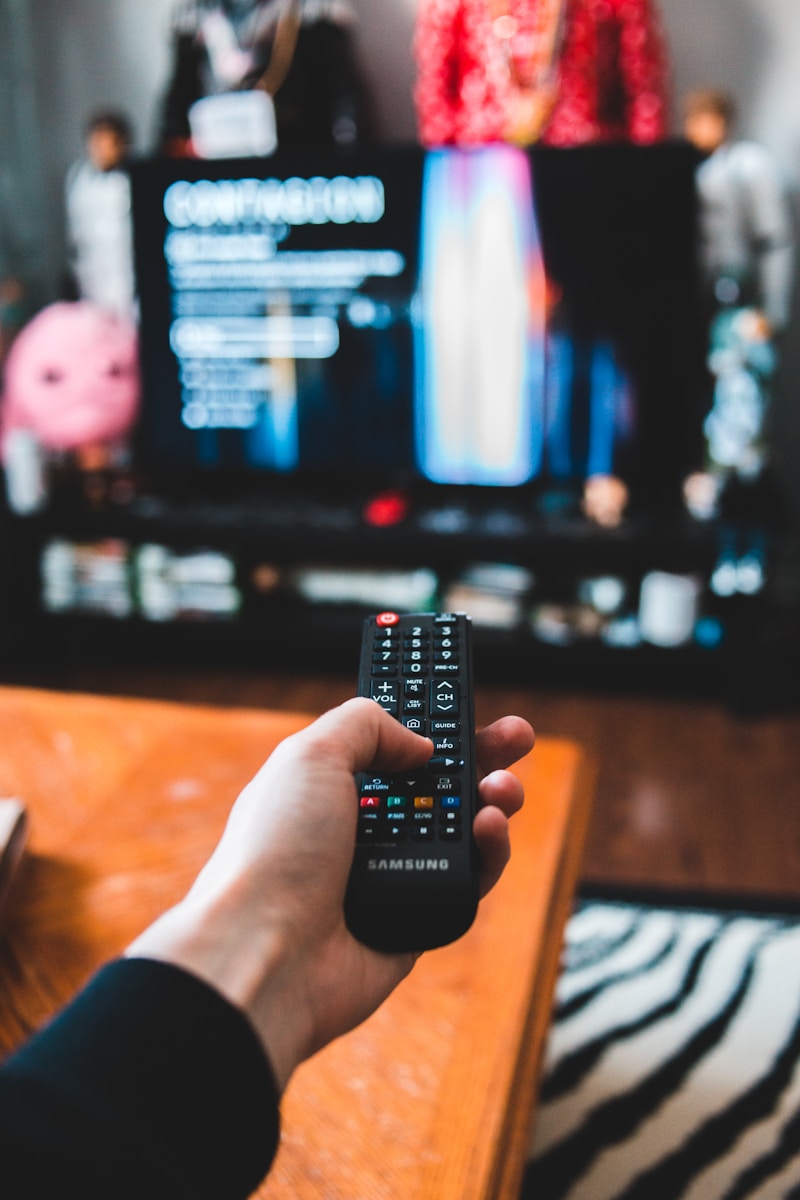
Your gigabit fiber-optic internet connection means absolutely nothing if it is being pushed through a single wall over an incredibly contested 2.4GHz Wi-Fi band. If your router features a distinct 5GHz network separation, forcing your Firestick onto that channel frequently eliminates invisible lag entirely.
For the ultimate stability, bypassing wireless transmission entirely is highly recommended. Utilizing a reputable micro-USB Ethernet adapter hardwires your system to the router, essentially guaranteeing zero packet loss. Speed tests run on your mobile phone are misleading; they do not dictate the microscopic packet stability demanded by live streaming. If you are preparing your hardware for the first time, walking through the full Firestick setup guide is a critical step.
| Firestick Setup Factor | Why It Matters | What Good Looks Like | What Bad Looks Like |
|---|---|---|---|
| Available Storage | Critical for cache writing | 1.5GB+ of free space | "Low Storage" warning banners |
| Network Priority | Limits invisible latency | Hardwired Ethernet approach | Contested older 2.4GHz wireless |
| Background Load | CPU power designation | Minimal unused applications installed | Dozens of heavily bloated background apps |
How to Tell Whether the Problem Is TiviMate, Your Firestick, Your Internet, or the IPTV Provider

Mastering digital error isolation is the difference between blindly guessing and immediately applying the correct fix. Do not jump to conclusions without cross-testing.
Test with another player
If TiviMate is heavily stuttering, temporarily load a secondary player like Smarters Pro or VLC using the same channel list. If the secondary app plays the broadcast flawlessly, the issue is entirely sourced within your TiviMate internal decoder parameters or cache.
Test another channel category
If the main event sports feed is pausing but the dedicated cinema channels or 24/7 documentary streams in your package play with zero interruption, the provider is struggling to process the massive viewer load localized to that exact live game.
Test at non-peak hours
A stream that runs perfectly smoothly at 10 AM on a Tuesday but collapses into buffering hell at 8 PM on a Friday strongly suggests external throttling. Either your local Internet Service Provider is artificially limiting video packets during high-traffic residential hours, or your IPTV server is drastically oversold.
Test on another device
Turn off your television’s Wi-Fi connection and test the exact same channel array on your mobile phone utilizing your cellular 5G data plan. If the mobile phone produces completely flawless, unbroken video using cellular data, your home internet or the Firestick itself is heavily compromised.
What the results actually mean
| Test | If Buffering Continues | If Buffering Stops | What That Usually Means |
|---|---|---|---|
| Alternative Player App | Provider / Network Issue | App Settings Issue | Your primary player decoder requires immediate recalibration. |
| Cellular Phone Network | Provider Server Issue | Local Network Issue | Your home ISP is heavily throttling your specific media packets. |
| VOD Cinema Category | Local Network Issue | Provider Overload | The specific live server broadcasting the match has critically crashed. |
Why Live Sports Expose Weak Setups Faster Than Movies or Series
It is incredibly common for users to complain that Hollywood cinema files stream perfectly, while weekend live football transforms into a pixelated slideshow. Cinematic files operate using dynamic pre-buffering. The application downloads multiple minutes of the movie ahead of what you are actually watching, creating an invisible safety net that entirely masks tiny internet dropouts.
Live television possesses no such luxury. Because the football match is broadcasting in real-time, there is virtually zero pre-loaded buffer margin. Furthermore, premium action broadcasts push massive bitrate spikes alongside 50fps or 60fps rendering to properly capture fast, fluid camera movement. When millions of viewers attempt to pull these incredibly heavy, real-time data packets from weak infrastructure simultaneously, the streams shatter under the weight. This is precisely why locating incredibly elite server distribution, outlined heavily in the sports channels guide makes all the difference for modern fanatics.
When a VPN Helps — and When It Does Not
There is a prevalent, aggressive myth in the media landscape that a VPN is a magical wand that repairs all buffering. The truth is far more nuanced.
If your localized Internet Service Provider actively monitors your bandwidth and artificially throttles heavy data streams during typical evening peak hours, a highly reputable VPN is incredibly useful. Activating standard encryption completely obscures your traffic signature, forcing your ISP to treat your heavy streaming data precisely like generalized web browsing, frequently restoring massive speeds. For heavy security hygiene checks, reviewing the official IPTV safety guide is always deeply recommended.
However, a VPN will absolutely never repair an overloaded provider server. Furthermore, routing your high-definition data through a distant, slow VPN server can actually introduce severe buffering by increasing latency and degrading your fundamental download speed. Rely on a VPN exclusively to bypass artificial internet chokes, not as a blanket performance enhancement.
When You Should Switch Settings, Switch Player, Switch Device, or Switch Provider
Instead of endlessly cycling through hardware menus, you must apply precise decision logic to cut down diagnostic time.
When you formally identify a provider collapse, upgrading to the professional architecture reviewed in the best IPTV services category eliminates server-side anxiety entirely.
Best-Case Setup for Smooth TiviMate Streaming on Firestick
Achieving flawless, cinema-grade performance requires unifying elite hardware with highly disciplined maintenance. An ideal digital streaming stack looks like this:
Final Verdict
Buffering is rarely the symptom of just a solitary, localized failure; it is frequently the manifestation of compounding technical bottlenecks. From minor wireless interference to drastically overloaded global distribution servers, recognizing the symptoms allows you to skip pointless troubleshooting steps and attack the actual source of the problem.
Testing your internal connection thoroughly, enforcing strict application hygiene, and avoiding outdated budget hardware are mandatory prerequisites for serious viewers. Crucially, do not allow a notoriously unreliable server backend to gaslight you into assuming your expensive living room setup is broken. By stepping up to premium streaming infrastructure, you permanently isolate yourself from the chaos of cheap resellers, securing a beautiful, uninterrupted pipeline straight to your screen. Browse the entirety of our complete blog library for deeper structural insights covering smart ecosystem optimization.
FAQ
Why does TiviMate keep buffering on Firestick?
Buffering is triggered when your media application process consumes video data faster than your home network or your specific provider's server can realistically supply it, causing the decoder to pause entirely while waiting for additional frame packets.
What is the best buffer setting for TiviMate on Firestick?
The "Normal" setting is the gold standard for standard Wi-Fi environments. Setting the parameter to "Large" aggressively increases initial channel loading times, while "None" demands zero latency and is highly risky on wireless networks.
Is TiviMate buffering caused by my IPTV provider?
Frequently, yes. If the exact same live stream severely stutters during massive prime-time sporting fixtures but plays absolutely flawlessly during a quiet weekday afternoon, their digital servers lack the bandwidth necessary to support high user volume.
Does a Firestick 4K Max buffer less than older Firestick models?
Significantly less. The modern 4K Max possesses substantially more internal RAM, faster raw computational processing, and heavy Wi-Fi 6 hardware compatibility, allowing it to easily chew through high-bitrate live streams that would quickly crash older generations.
Can clearing cache fix TiviMate buffering?
Yes, maintaining strict application hygiene is vital. Clearing the TiviMate cache completely removes old system data that clogs up the active memory, ensuring the Fire OS returns maximum working capacity to the live video decoding process.
Should I use Ethernet for IPTV on Firestick?
It is the ultimate recommendation. Hardwiring an Ethernet adapter directly to the Firestick bypasses all invisible residential Wi-Fi interference, resulting in an incredibly tight, low-latency data pipeline required for high-framerate action.
Does a VPN fix TiviMate buffering?
A VPN only fixes buffering if your specific Internet Service Provider is artificially throttling media tracking during peak evening hours. However, a VPN will categorically not resolve an overloaded, poor-quality provider server.
When should I switch player or provider?
Switch your media player app if the current software frequently crashes during menu navigation or throws persistent decoder errors. Switch your entire provider immediately if cross-device testing reveals permanent server congestion during every major weekend broadcast.
Related Articles

Best IPTV Players for 4K Streaming in 2026
Discover the most reliable and feature-rich IPTV players optimized for seamless 4K streaming and zero buffering this year.
Read Article
How to Setup IPTV on Firestick: Complete Guide 2026
A complete step-by-step guide to setting up IPTV on any Firestick model — from enabling developer options to optimizing for 4K playback.
Read Article
IPTV Not Working? (Fix Guide 2026)
Fix IPTV buffering, loading issues, and errors with this complete troubleshooting guide. Learn how to diagnose network issues, app cache problems, and hardware limits to get your streams running flawlessly.
Read Article