
Buffering has a pattern. That pattern tells you the cause — and the cause tells you the fix. IPTV that only buffers at night is an ISP problem. Buffering only during live sports is a server problem. Random buffering on a fast connection is almost always WiFi jitter, not speed. This guide identifies your specific cause and gives you the exact fix. Start with the diagnostic table.
Identify Your Cause Before You Fix Anything
Treating every buffering problem with the same generic fix list is why people try 10 things and still buffer. The buffering pattern is the diagnosis. Spend 2 minutes identifying it and you'll know which of the fixes below actually applies to you.
What is your buffering pattern? Find your cause.
| Buffering Pattern | Root Cause | Go to Fix |
|---|---|---|
| Only buffers 7–11 PM, fine in the morning | ISP throttling / traffic shaping | Fix 5 |
| Only during major sports / live events | Provider server overload | Fix 8 section |
| Random freezes on HD, fast connection | WiFi jitter on 2.4 GHz | Fix 1 |
| Buffers on 4K, never on HD | Decoder / HEVC processing limit | Fix 6 |
| Starts fine, worse after 30–60 min | Thermal throttling (overheating) | Fix 7 |
| Buffers everywhere at all times | Speed or storage issue | Fix 3, Fix 4 |
| Works on phone, buffers on Firestick | Firestick RAM or cache issue | Fix 4, Fix 2 |
| Brief freeze every 30–60 seconds | Buffer too small for connection | Fix 2 |
Fix 1 — Switch to Ethernet (Fixes Most Random Buffering)
This one fix resolves more Firestick buffering than everything else combined. Do it before anything else.
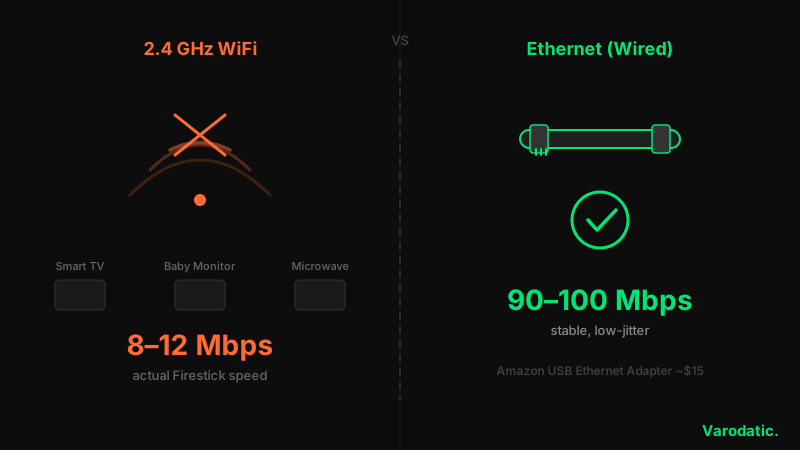
The 2.4 GHz WiFi band — which most Firesticks default to — is congested in most homes. Every smart device, baby monitor, and microwave competes on it. On a 100 Mbps fiber connection, a Firestick Lite on 2.4 GHz two rooms from the router realistically gets 8–12 Mbps. That's below the 15 Mbps minimum for reliable HD. The internet isn't slow. The device's WiFi is.
5 GHz is faster and less congested — connect to it if Ethernet isn't possible. But wired beats both. The Amazon USB Ethernet adapter costs about $15 and plugs directly into the Firestick's micro-USB port. Most people who switch to Ethernet stop buffering the same day.
Settings → Network on your Firestick — confirm the wired connection is active.Settings → Network → [your WiFi] → Forget Network and reconnect to your router's 5 GHz network (usually labelled with "-5G" in the name).💡 Can't run a cable? A powerline adapter kit ($40–60) sends internet through your home's electrical wiring and delivers near-wired speeds to any room without drilling or cable runs.
Fix 2 — Increase the Buffer Size
The default buffer in most IPTV apps is too small. When the stream dips for even a second, there's nothing in reserve and playback freezes.
IPTV is a live stream, not a file. Your app downloads a few seconds ahead of playback — that's the buffer. On a stable connection, a 5-second buffer is fine. On a connection with jitter (where speed fluctuates, even briefly), 5 seconds isn't enough. Increasing it to 15–20 seconds gives the app more runway to absorb those dips without pausing playback.
TiviMate: Go to Settings → Player → Buffer Size → Very Large. This is the single most effective TiviMate setting change for reducing mid-stream freezes.
IPTV Smarters Pro: Go to Settings → Player Settings → Buffer Size. Set to 10 seconds for stable connections, 15–20 seconds for connections with intermittent dips.
Note: Buffer size doesn't fix a fundamentally slow connection. If your speed is below 15 Mbps for HD or 25 Mbps for 4K, more buffer just delays the freeze — it doesn't prevent it.
Fix 3 — Test and Fix Your Internet Speed
Don't test speed on your phone. Test it on the Firestick itself — the number you get there is the one that matters.
Speed requirements aren't complicated: 15 Mbps stable for HD, 25 Mbps stable for 4K. The critical word is stable — a connection that averages 50 Mbps but dips to 5 Mbps every 30 seconds will buffer more than a steady 20 Mbps connection. Install the Analiti Speed Test app from the Amazon Appstore and run it multiple times. WiFi speeds fluctuate constantly. If you get over 25 Mbps consistently and still buffer on 4K, internet speed isn't the problem.
⚠️ Speed test ≠ stream stability. A high speed test result doesn't rule out ISP throttling. ISPs throttle specific traffic types — your speed test might pass while your IPTV stream gets slowed down. If buffering only happens at specific times, see Fix 5.
Fix 4 — Clear Cache and Free Up Storage
Below 500 MB of free storage, Firestick starts struggling. The IPTV app can't write stream cache data anywhere.
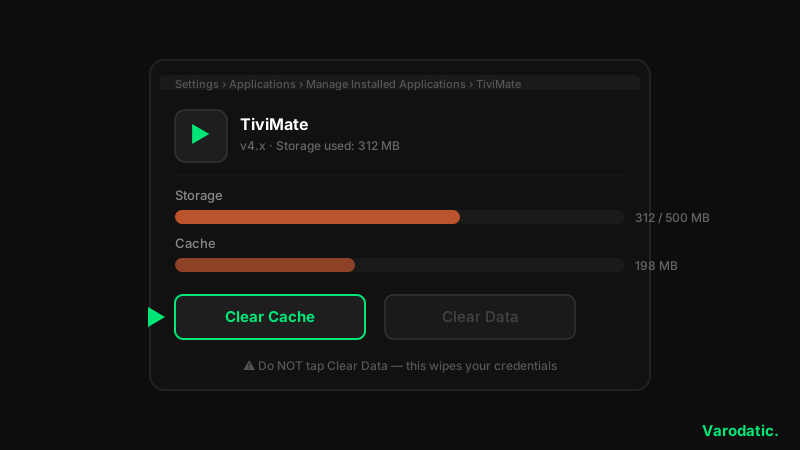
The base Firestick ships with 8 GB of storage. About 4 GB is usable after the OS. IPTV apps need free space to cache stream data and EPG information. When storage drops below 500 MB, the device writes cache data more slowly — which shows up as buffering and brief freezes. The app cache itself can also become corrupted over time, blocking clean stream downloads.
Settings → My Fire TV → About → Storage. If under 500 MB free, continue.Settings → Applications → Manage Installed Applications → [TiviMate or IPTV Smarters] → Clear Cache. Do not tap Clear Data — that wipes your credentials.Settings → Preferences → Data Monitoring → Off. This feature logs usage data and quietly fills storage.Settings → Applications → Appstore → Automatic Updates → Off. An update downloading mid-stream steals bandwidth and RAM.💡 Weekly restart habit. Firesticks accumulate fragmented RAM over time. A weekly full restart (not standby sleep) clears it. Hold the Select + Play/Pause buttons for 5 seconds — that's a real restart, not a sleep cycle.
Fix 5 — Check for ISP Throttling (Evening Buffering)
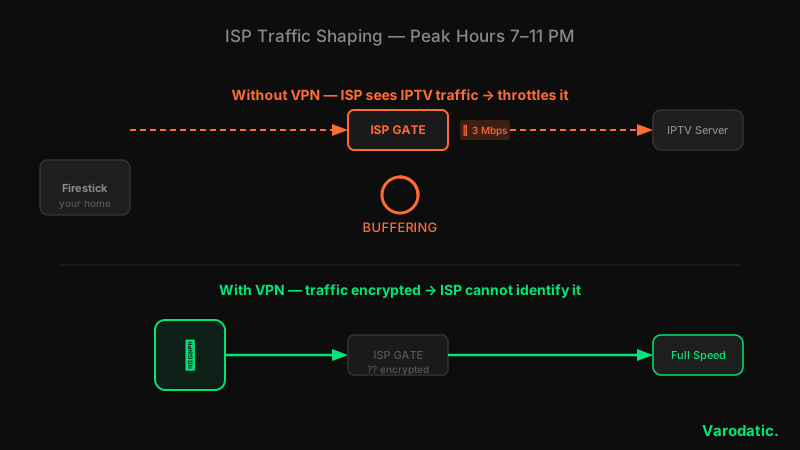
If your IPTV buffers between 7 and 11 PM but runs cleanly in the morning, that's not a coincidence. That's your ISP shaping traffic during peak hours.
ISPs use deep-packet inspection to identify video streaming traffic. When they detect it — especially sustained high-bandwidth flows like live IPTV — some ISPs deliberately reduce the speed for that traffic type during congested hours. Your overall speed test might look fine because speed tests don't use the same traffic signature. The diagnostic is simple: test IPTV on mobile data. Not WiFi — 4G/5G data. If it streams cleanly on mobile data but buffers at home in the evening, throttling is almost certainly the cause. The fix is a VPN on the Firestick — the encrypted tunnel makes the traffic unidentifiable.
⚠️ VPN adds 10–20% speed overhead. Only use one if you've confirmed throttling through the mobile data test. On a slow connection, a VPN makes buffering worse — the encryption adds latency and reduces throughput. It's a throttling fix, not a general buffering fix.
For a complete setup walkthrough, see our full VPN guide.
Fix 6 — Switch the Video Decoder
The wrong decoder for your specific Firestick model causes freezes that look like buffering but aren't. It's a codec mismatch, not a network problem.
IPTV apps give you a choice of how video is decoded. The built-in ExoPlayer handles most streams well, but on Firestick Lite and older 4K models, high-bitrate HEVC streams push it past its limit. Switching decoder or disabling hardware acceleration resolves freezes that only happen on 4K channels and never on HD — a reliable sign the issue is decoding, not network.
TiviMate:
Settings → Player.Settings → Player Settings.💡 Pattern check: If buffering only happens on 4K channels but HD plays fine, this is almost certainly the decoder — not WiFi or throttling. H.265/HEVC requires more processing than H.264. Firestick Lite handles it poorly without hardware acceleration.
Fix 7 — Check for Thermal Throttling (Overheating)
Firesticks get hot behind TVs. When they overheat, the processor slows itself down — and the stream buffers.
Thermal throttling is underdiagnosed. The Firestick runs behind the TV, often crammed into a poorly ventilated space. During extended 4K viewing sessions, the device heats up. When it crosses a thermal threshold, it deliberately reduces CPU speed to cool down. That manifests as buffering that starts fine and gets progressively worse over the first hour, then improves after a break.
💡 Overheating pattern: Buffers after 30–60 min but not at the start? Works again after a 10-minute break? That's thermal throttling, not your network or your provider.
Fix 8 — Change Your DNS Server
Slow ISP DNS servers delay every channel load and every stream lookup. It's not a huge fix, but it's free and takes 2 minutes.
Your Firestick uses your ISP's DNS server by default to look up stream addresses. Slow or overloaded ISP DNS adds latency to every channel request. Switching to Cloudflare (1.1.1.1) or Google (8.8.8.8) reduces initial channel load times and can reduce brief freezes at stream start.
Settings → Network → [your WiFi network] → Forget Network.1.1.1.1 (Cloudflare) as the primary DNS.When It's the Provider's Server, Not Your Setup
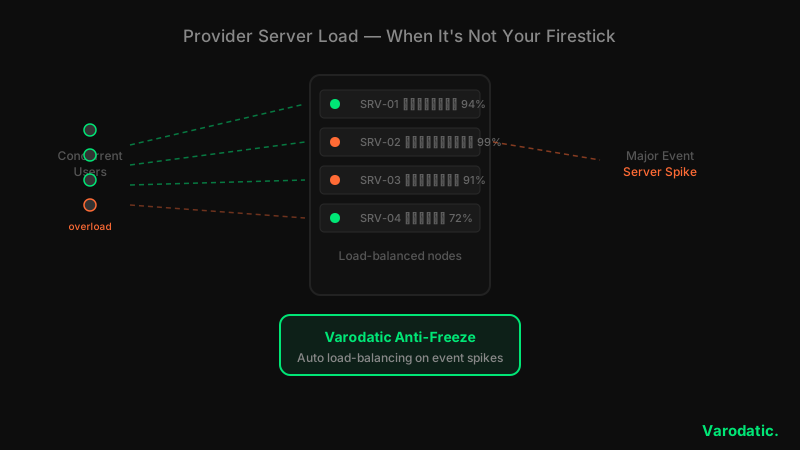
If your IPTV only buffers during major live events — Champions League finals, NFL playoff games, pay-per-view nights — that's server overload. Too many users connecting to the same stream node simultaneously. No local fix will resolve this. It's provider infrastructure, not your Firestick or your internet.
Varodatic uses anti-freeze technology and load-balanced servers to handle concurrent user spikes. If you're on a plan experiencing this, contact support — we can confirm whether the problem is server-side and move you to a better-performing node.
If buffering persists across every channel at all times of day and none of the eight fixes have helped, check your plan details — the issue may be subscription-tier related.
Firestick Model Matters — Know Your Hardware Limits
Not every Firestick handles the same IPTV workload. This matters more for IPTV than for Netflix or YouTube, because IPTV apps load full channel lists into RAM on startup — 40,000 channels is a different task from streaming a single file.
Firestick Lite has 1 GB of RAM and an older processor. Fine for HD. It will struggle with large playlists and 4K HEVC content. The RAM ceiling — not WiFi — is usually why Lite users buffer more than 4K Max users on the same network.
Firestick 4K (1st gen) has 1.5 GB of RAM. Better than Lite, but noticeably slower than the Max on heavy IPTV workloads. Firestick 4K Max (both generations) has 2 GB of RAM and a faster CPU — the minimum we recommend for Varodatic IPTV's full channel list with 4K streams. On a Max with Ethernet and 25 Mbps+, buffering is almost always an app setting or ISP throttling issue, not hardware.
Fire TV Cube has 2 GB of RAM and built-in Ethernet. No adapter needed. Best Amazon hardware for IPTV.
Firestick Hardware Limits for IPTV (2026)
| Model | RAM | IPTV Suitability | Max Recommended Resolution | Notes |
|---|---|---|---|---|
| Fire TV Stick Lite | 1 GB | ⚠️ Limited | 1080p HD | Struggles with large playlists; buffers on 4K |
| Fire TV Stick 4K (1st gen) | 1.5 GB | ✅ Good | 4K (with decoder fix) | Slower on playlist parsing |
| Fire TV Stick 4K Max (1st gen) | 2 GB | ✅ Recommended | 4K | Best balance of price and IPTV performance |
| Fire TV Stick 4K Max (2nd gen) | 2 GB | ✅ Recommended | 4K | Fire OS 8, improved CPU |
| Fire TV Cube (3rd gen) | 2 GB | ✅ Best | 4K | Built-in Ethernet — no adapter needed |
| Fire TV Stick 4K Select (Vega OS) | 2 GB | ⚠️ App Store only | 4K | No sideloading; Smarters via Appstore only |
Why does my IPTV buffer when my internet speed is fast?
Fast speed doesn't mean stable speed. IPTV is a live stream — even a 2-second dip in throughput causes a freeze. The most common causes on fast connections are WiFi jitter (switch to Ethernet or 5 GHz), ISP traffic shaping during peak hours (test with a VPN to confirm), or a decoder mismatch on 4K streams (switch to ExoPlayer H/W+ in your app's player settings). Run a speed test from the Firestick itself using Analiti — not your phone.
Why does my IPTV only buffer in the evening?
That's ISP throttling. ISPs apply traffic shaping to streaming services during peak congestion hours — typically 7–11 PM. Your morning speed test passes because throttling isn't active yet. Run the mobile data test: stream the same channel on 4G/5G with WiFi turned off. If it streams cleanly there, a VPN on your Firestick will resolve the evening buffering by encrypting the traffic so the ISP can't identify and throttle it.
Does a VPN fix IPTV buffering?
Only if ISP throttling is the cause. A VPN adds 10–20% encryption overhead — if your connection is already borderline or the problem is local (WiFi, RAM, overheating), a VPN makes buffering worse. Confirm throttling with the mobile data test first. If throttling is not the cause, skip the VPN and focus on Ethernet, buffer size, and app decoder settings. For the full breakdown, see our full VPN guide.
What is the best buffer size for IPTV Smarters on Firestick?
On a stable connection above 25 Mbps: 5–10 seconds. On a connection with intermittent dips or WiFi: 15–20 seconds. A larger buffer smooths out momentary network hiccups but delays the start of playback and increases how far behind live you are. In TiviMate, set Settings → Player → Buffer Size → Very Large for the most conservative setting.
Why does IPTV buffer only during sports but not normal TV?
Sports streams run at higher bitrates than standard programming — live sports at 4K can hit 20–30 Mbps per stream. On lower-spec Firestick models or marginal connections, that bitrate hits the ceiling. Sports events also draw simultaneous users to the same stream node. If it's consistent across every major sports event, contact Varodatic support — it's more likely a server-side load issue than a local one.
Work through the diagnosis table first — skip the fixes that don't match your pattern. For most Firestick buffering issues, the answer is in the first four fixes: Ethernet, buffer size, speed check, and cache clear. If the buffering matches an ISP throttling pattern, the VPN test confirms it in 60 seconds. Anything that survives all eight fixes is almost certainly on the server side — contact Varodatic support with the details and we'll check it from our end.
Related Articles

Do You Need a VPN for IPTV? Honest 2026 Guide
Not sure if you need a VPN for IPTV? We break down exactly when a VPN helps, when it doesn't, and which ones actually work — no hype, just honest advice.
Read Article
How to Set Up Varodatic IPTV on Firestick (2026 Guide)
Get Varodatic IPTV running on your Firestick in under 10 minutes. Step-by-step 2026 guide — no jailbreak needed, works on all Fire TV models.
Read Article
IPTV Smarters Keeps Crashing on Firestick — 9 Fixes That Actually Work
IPTV Smarters crashing on Firestick? We cover all 9 causes — corrupt cache, low RAM, hardware decoding conflicts, ISP throttling — with exact steps to fix each one.
Read Article